Nintendo Switch Not Connecting To TV When Docked And How To Fix It
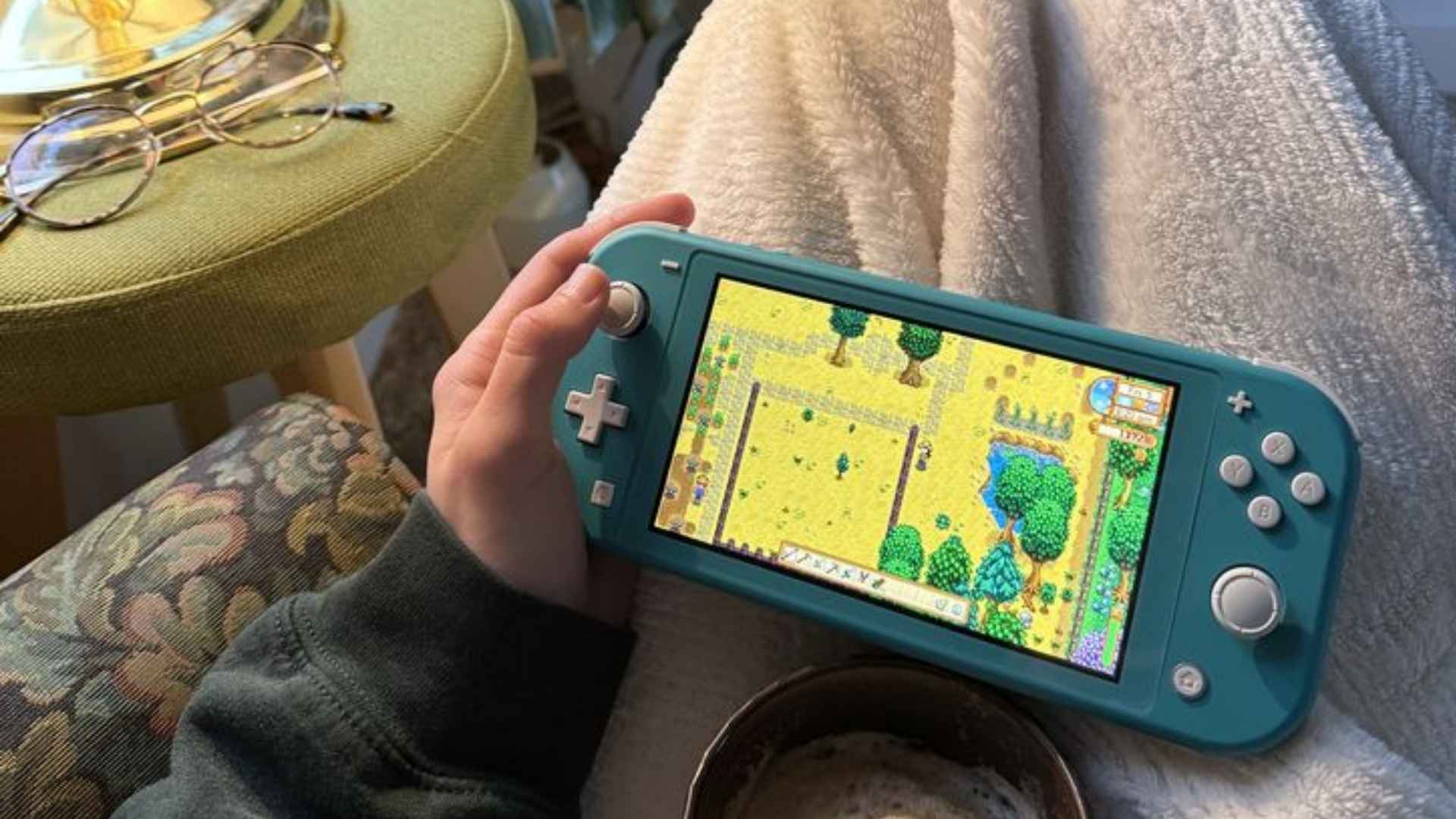
Connecting a Nintendo Switch to a television display is usually a seamless experience, but technical hiccups can occasionally leave players staring at a blank screen. When the console fails to transmit signal while placed in its station, underlying causes range from simple power sequencing glitches to faulty physical connections. Understanding how these components communicate makes it much easier to isolate the underlying issue and restore video output.
Understanding Common Signal Handshake Failures
Modern gaming consoles rely on specific initialization protocols to establish a secure audio and video handshake with high-definition displays. If the official power adapter and video cables are not plugged in a specific order, the dock may fail to register the console properly. Disconnecting all cables and reconnecting them starting with the power supply often resolves communication errors.
Using third-party chargers or unapproved cables can also prevent the system from outputting a stable signal to your screen. The console requires a specific power profile to activate TV mode, which standard mobile chargers cannot always supply. Utilizing official hardware ensures the system receives sufficient voltage for video processing.
Checking Cable Connections and Port Settings
Physical connections frequently serve as the root cause when video signals fail to reach your television display. Inspecting the HDMI cable for bent pins, loose fits, or internal wire damage can prevent unexpected Signal Loss. Trying a secondary HDMI port on the back of your television set can also rule out a failing input channel.
In addition, TV settings like auto-input detection or HDMI CEC controls can sometimes conflict with console activation. Adjusting display resolutions manually within the Switch system settings while in handheld mode can help bypass compatibility bugs. Lowering screen resolution settings momentarily may allow the television to establish a stable initial connection.
Managing Dock Hardware and Power Cycle Fixes
Performing a full system restart on the console clears temporary cache bugs that might interfere with dock detection. Holding down the power button on the handheld unit until the power menu appears allows users to execute a complete reboot. Placing the console back into the station after a full restart often restores normal functionality.
Over time, dust particles and debris can accumulate inside the bottom USB-C connector port of the console unit. Gently cleaning the connection points with compressed air ensures a solid electronic fit when seated in the station. Maintaining clean contact points prevents signal degradation and power supply interruptions during extended play sessions.
Knowing When to Seek Hardware Repair
If primary troubleshooting steps fail to yield results, testing the console on a secondary television or dock setup can isolate the problem. Identifying whether the issue lies within the console body, the dock circuitry, or the display unit saves significant diagnostic time. When hardware faults occur within internal chips, professional repair services offer the safest path forward.
Keeping system firmware updated ensures ongoing compatibility with modern television displays and smart hubs. Nintendo regularly releases software patches that refine hardware performance and correct peripheral bugs. Maintaining updated software reduces unexpected signal drops and keeps your setup running smoothly.