How To Join A PlayStation Party On PC Complete Voice Chat Guide
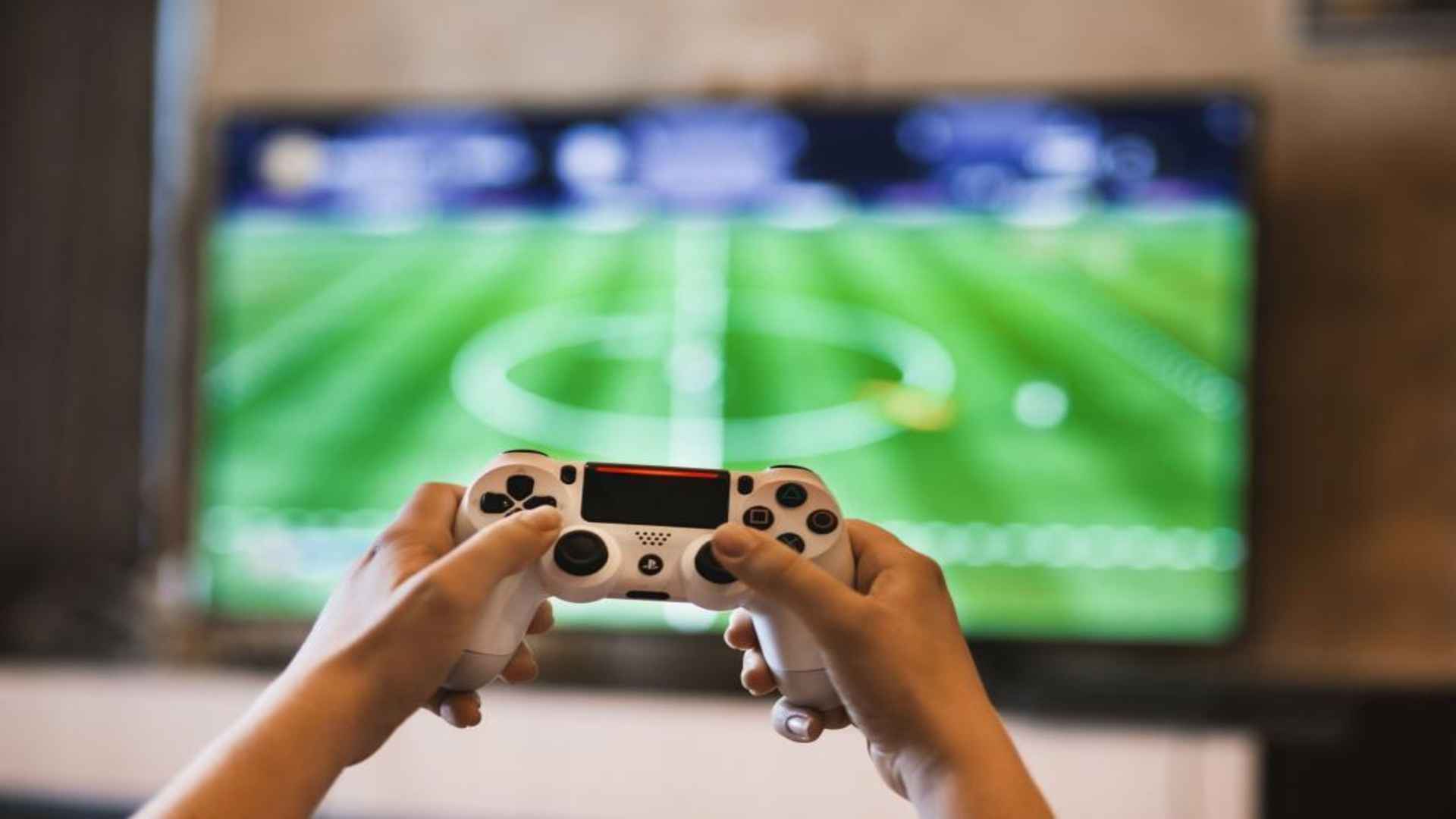
Cross-platform gaming has brought friends closer together, allowing PC and console enthusiasts to share the same digital battlefields. However, communicating smoothly across different ecosystems used to require complex setups or uncomfortable hardware compromises. Thankfully, modern integration options have bridged the gap, making it simpler than ever to connect with your friends on the PlayStation Network directly from your desktop interface.
Setting Up the Official Cross Platform Integration
The most seamless way to access your console friend group is by leveraging the official Discord integration built into the PlayStation ecosystem. You will need to link your PlayStation Network account to your Discord profile through the user settings menu on your computer or mobile app. Once authorized, this connection allows you to transfer voice channels directly from your desktop interface to the console framework.
This method eliminates the need for separate audio mixers or using multiple headsets simultaneously while playing your favorite games. It provides a clean digital bridge that ensures high-fidelity voice transmission without impacting your computer's gaming performance. Millions of players utilize this integrated system daily to coordinate strategies across different hardware platforms smoothly.
Utilizing the Desktop PlayStation Application Framework
Another reliable approach involves using specific software solutions provided within the evolving ecosystem of modern video games. Certain first-party titles released on desktop platforms now feature a dedicated PlayStation overlay accessible via a quick keyboard shortcut. This interface allows you to view your network profile, manage incoming game invites, and coordinate communication directly with your console contacts.
If a specific title does not support the built-in overlay, players can utilize the mobile PlayStation application alongside virtual audio routing software on their desktop. By routing the audio signal through your computer's input system, you can maintain communication while keeping your hands on your mouse and keyboard. This setup ensures you never miss an invitation from your console team members during intense gaming sessions.
Optimizing Audio Settings for Clear Communication
Achieving crisp audio quality requires adjusting a few critical parameters within your chosen desktop operating system. You should navigate to your sound control panel to ensure your preferred microphone is designated as the primary communication device. Adjusting the microphone gain levels prevents your voice from clipping or transmitting excessive background noise during quiet moments.
Many players also benefit from enabling noise suppression features built into modern communication clients to filter out mechanical keyboard clicks. It is equally important to balance the incoming chat volume against your current in-game sound effects so you can hear callouts clearly. Taking a few minutes to configure these options guarantees a stable and professional audio experience for everyone involved.
Troubleshooting Common Connection Bottlenecks
Occasionally, digital restrictions or network mismatches can prevent you from entering a voice lobby successfully. If you encounter errors, verifying that your privacy settings allow cross-network communication is the first critical step to resolve the issue. Restrictive NAT types on your home router can also block communication packets, so checking your connection stability remains highly recommended.
Restarting your communication client or re-linking your network accounts frequently clears out temporary software glitches that cause unexpected disconnects. Ensuring all related software applications are updated to their latest versions will minimize compatibility conflicts. With these simple troubleshooting steps, you can quickly return to your multiplayer session without further audio interruptions.